Telegram connection
Angry.Space can process requests that users send to the bot in the Telegram messenger directly or leave in group chats where the bot is present.
The service can also collect native comments under posts in Telegram channels and personal messages to the channel.
For Telegram business users, it is possible to connect a personal account for monitoring.
Please note that you cannot connect the same bot to different services.
When you connect a bot to Angry.Space, messages from users will come only to us and will stop coming to other CRM systems and services if they were connected before.We recommend creating a separate bot for each service you use.
Within our service, you can use the same bot for different types of connection: for collecting personal messages to the bot, channel, and personal account, processing messages in group chats, and comments under your channel's posts.
To do this, you need to perform additional bot settings in Telegram (see the instructions below).
STEP 1: Creating a bot
To create a bot:
- Go to Telegram to the chat with@BotFather
- Enter the /newbot command in the chat with the bot or use the Web App by clicking the "Open" button and then "Create a New Bot"
- Enter the name and username of your bot
Replies to your clients will be sent on behalf of the Telegram bot (except when a personal account is connected); there is no technical possibility to send them on behalf of the community,therefore, when choosing a name and username for the bot, we recommend making them closer to your brand.
For example,
yourbrand_bot
yourbrand_support_bot
yourbrand_help_bot
Ours looks like this:
For example,
yourbrand_bot
yourbrand_support_bot
yourbrand_help_bot
Ours looks like this:

- Complete the setup of your bot: set an avatar, add a description in the "Edit Bot" section in the chat with@BotFatheror in the "Edit Info" section if you used the Web App
You can only change your bot's name,the username cannot be changed.
 or

After creating the bot, you will receive an API token, which is required to connect the bot to the service.
 or

STEP 2: Connecting the bot in Angry.Space
Copy the bot's API token from the previous step and switch to the service tab.
- Go toSettings - Social profiles
- Click the "Add social profile" button in the desiredcompany
- Next to Telegram, click the "Add" button
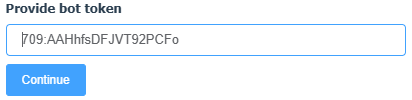
- In the window that opens, paste the copied token into the corresponding field and click "Continue"
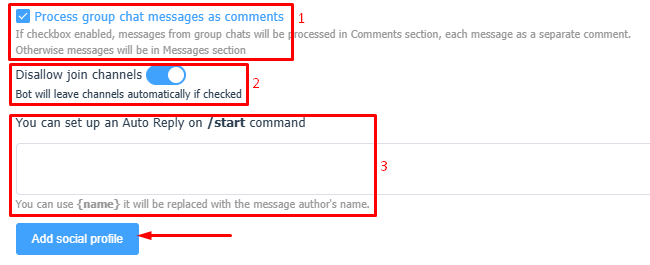
- Leave or clear the checkbox depending on how it is more convenient for you to process comments from group chats (screenshot, block 1)
If the checkbox is selected, users' comments in group chats to which the bot will be added, as well as under posts in channels, will be collected and processed in the"Comments"section.
Otherwise, comments will go to the"Messages"section into the general chat dialog.
Otherwise, comments will go to the"Messages"section into the general chat dialog.
- To avoid your bot being added to third-party channels, enable the toggle (screenshot, block 2).
This will protect you from spam.
More details on how to protect the bot from collecting third-party messages are described in theARTICLE.
- If you plan to collect direct messages that users will send to the bot, configure the bot's welcome message (screenshot, block 3).
This message will be sent to the user when initiating a dialog with the bot after the /start command.
- Complete the connection by clicking the "Add social profile" button
After creating the bot and connecting it to the service, select the appropriate instruction and follow it for further correct configuration of your bot: