Automatic handling rules
To make your work with the service even more efficient, use automatic handling rules for automatic handling of requests.
Automation rules will be useful when holding contests in comments, ignoring certain types of content, for example, mentions from spammers, will help simplify the work of operators when handling requests, etc.
Currently, automation rules allow you to
- tag content
- close requests that do not require a reply
- add emotional coloring to messages and comments
- delete comments for channels/group chats in Telegram, in VK and OK communities
- send automatic replies to reviews in app stores
Creating an Automation rule
Automation rule name
Content type selection
Trigger conditions selection
Action selection
Common Use Cases
STEP 1: Creating an Automation Rule
There are several ways to create an automation rule in the service:- via theSettings - Automation rulessection

- via theComments sectionfrom the comment processing window
Use this method to save time, for example, if an active discussion is taking place under a post and does not require your participation.
- via the "Chats and Channels" block in theSettings — Social profiles sectionfor Telegram bots

STEP 2: Automation Rule Name
After creating an automation rule, you will be taken to its settings page. The first thing you can do is specify its name.The automation rule name is useful for easy search when you have a large number of rules in the list and need to periodically edit existing ones.
The name can contain any characters, letters of the Latin alphabet, with a maximum length of 200 signs.
STEP 3: Selecting Content for Triggering
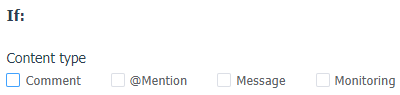
You can specify one or more request types as the content. Selecting the account where the automation rule will apply is mandatory.- Select the content type for which this rule will trigger.
- Select the accounts to which the rule will apply.
If the rule should apply to all accounts in the workspace, click the "Select All" button.
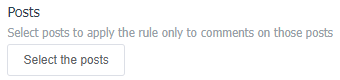
- Select the posts to which the automation rule will apply, if necessary (otherwise, no additional selection is needed in this block).
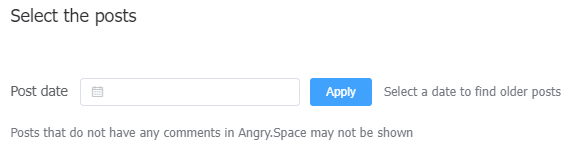
When selecting, you can specify the publication date to see only posts/discussions created on that day (for example, if you need to find an old post or discussion).
Posts with no comments collected in the service may not be displayed in the list.
STEP 4: Selecting a Trigger Condition
You can specify the following as a trigger condition:- Reply type (reply to another user)
If you do not participate in discussions between community members, select this condition and the action "Change status to Closed."
This allows you to manually process only those comments that are addressed to you.
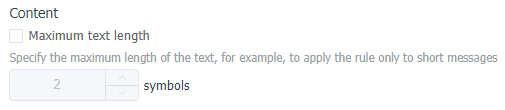
- Minimum/maximum text length

- The number of followers the comment or message author has (minimum count only) or a specific author label

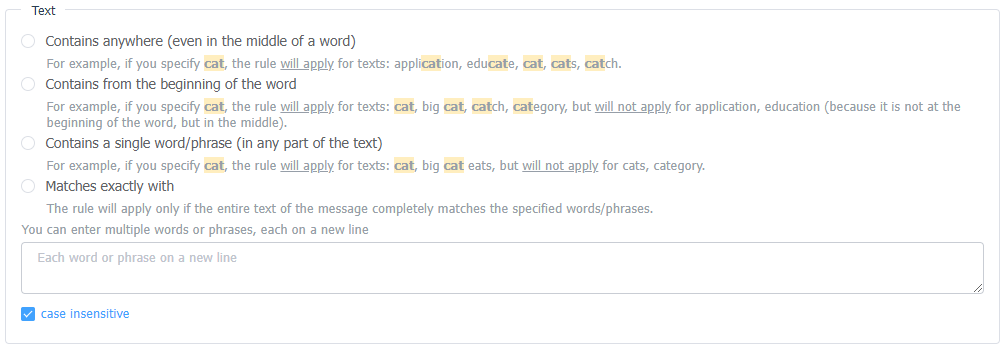
- Keywords, their parts, or full phrases
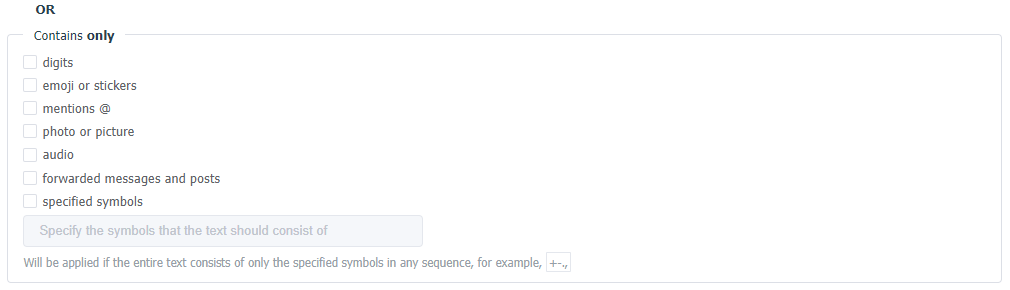
- Specific triggers in the message

If Instagram or VK accounts are selected in the "Social profiles" block, and the content type is set to direct messages, an additional"reaction/reply to the stories"option will appear.
This way, you can close short replies to stories or those containing only emojis.
- Set a filter for content for which the rule should not be applied
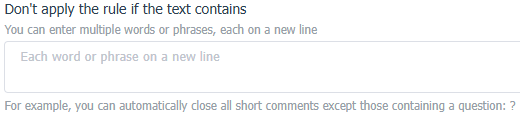
Therefore, you can specify only a part of the desired word without listing all of its possible variations.
- You can also enable additional conditions under which the rule will not be applied
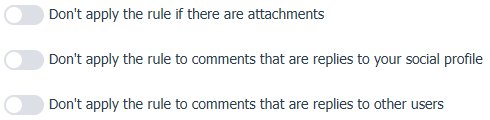
- Set the date and time after which the rule will automatically stop working, if necessary

STEP 5: Selecting an Action
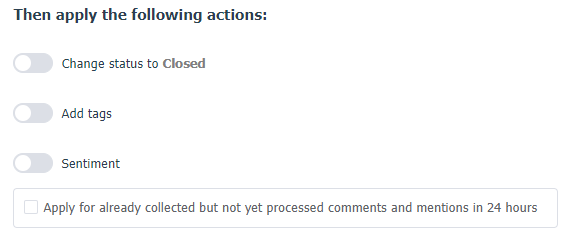
The system can perform the following actions on messages that meet the specified conditions:
close without a reply
assign a tag
- emotion labeling: "Negative"/"Positive"/"Neutral"
You can check this in theSettings - Sentimentsection.
- deleting comments
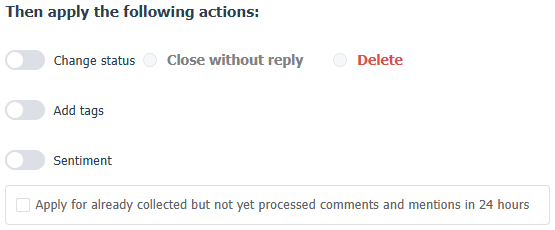
- sending an automatic reply to app store reviews

Once the configuration is complete, click the "Save" button.
The rule will start working automatically.
The created rule will appear in the list on theSettings - Automation rulespage, where you can pause, edit, or delete it. For each automation rule in the list, the date and time of its creation and/or last edit are also displayed. If needed, this will help you quickly find records in the Action Log.