App Store connection
You can collect and process reviews for your app from the App Store in the service by connecting it directly.
To connect it correctly, you will need the following data:
- API Key
- Issuer ID
- Key ID
STEP 1: Create an API Key in App Store Connect
Only the Account Holder or users with the Admin role can create API keys in App Store Connect.
Also note the following:
Also note the following:
- API keys are permanent and do not expire.
- Once created, the key cannot be modified to extend access to additional services.
- A single account can have no more than 50 active keys at a time.
- You can revoke a key at any time, but once revoked, it cannot be restored — meaning you will not be able to reply to reviews that were collected in the service before the key was deleted, and the integration will need to be restored with a new API key.
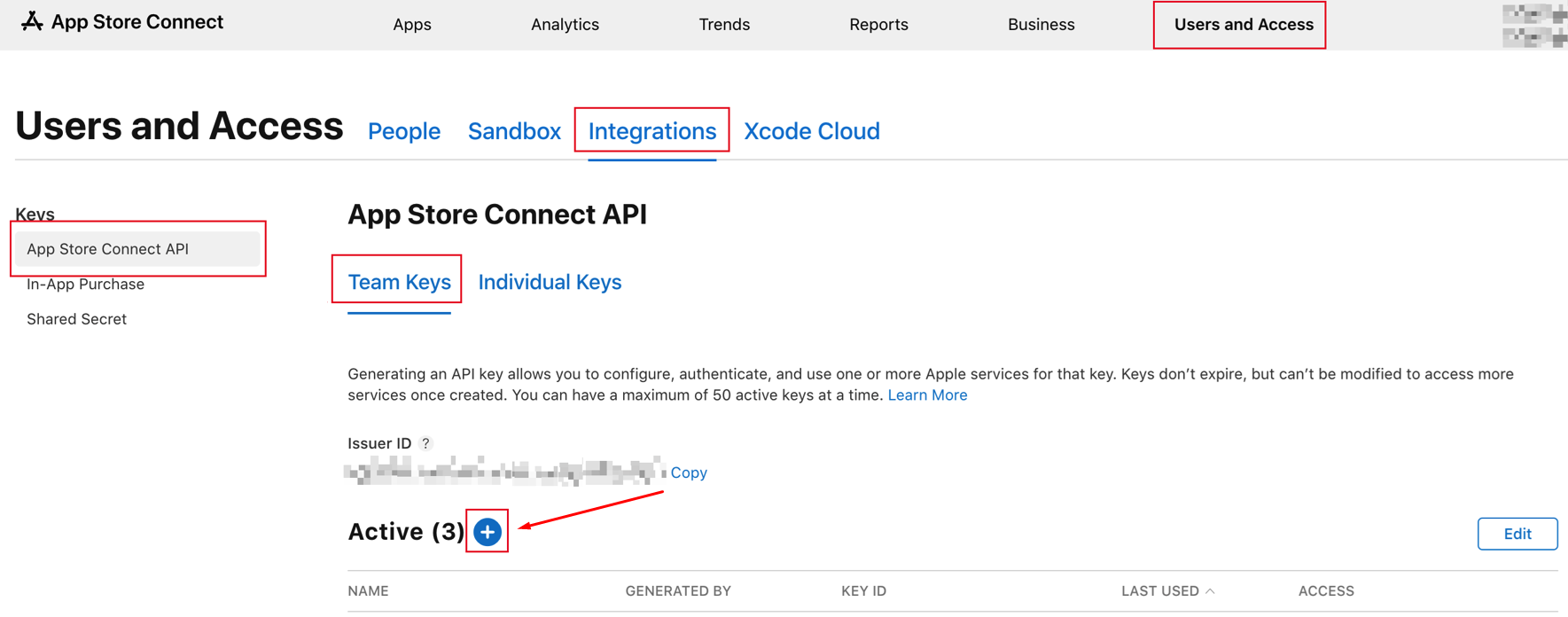
To create a key:
- In App Store Connect, go toUsers and Access - Integrations
- On the left, select App Store Connect API
- Then select Team Keys
- Click the (+) button
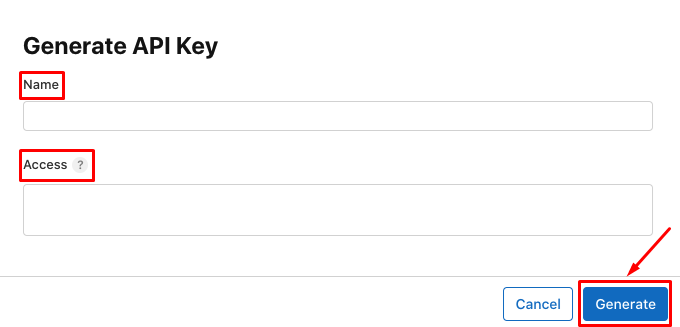
- Enter a name for the new key
We recommend naming keys so that it's clear which service they're created for, such as "Angry.Space key."
- In the Access field, select"Customer Support" permissions
- Once the settings are complete, click the "Generate" button
STEP 2: Adding an account to Angry.Space
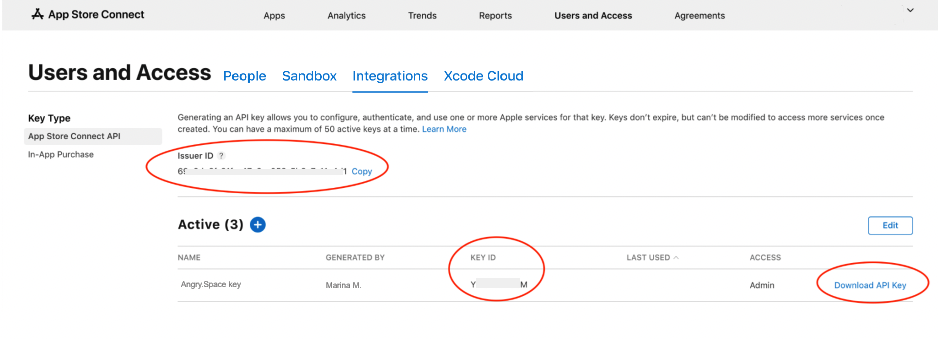
After creating an API Key in App Store Connect, you can obtain all the necessary connection details:
- The key itself must be downloaded by clicking the "Download API Key" button in the list of active keys.
The downloaded file should have the *.p8 extension.
- The Key ID is listed in the active keys table.
- The Issuer ID can be found above the list of active API keys.
This is a unique identifier provided by Apple for each App Store Connect account.
To connect a new account to the service:
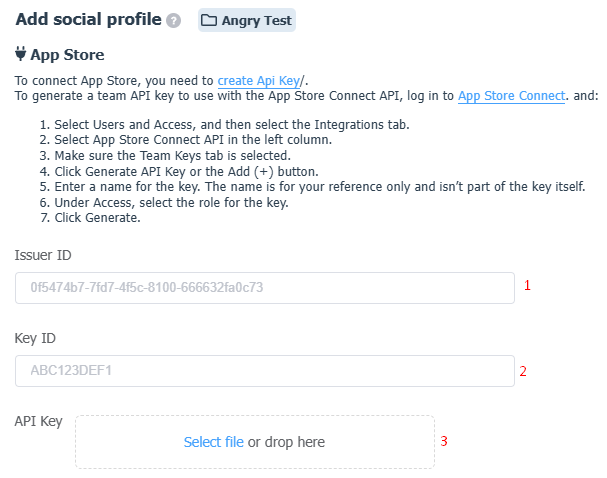
- Go toSettings - Social Profilesand click "Add Social Profile" for the desired company
- In the window that opens, click "Add" next to App Store
- Copy the required data from App Store Connect and paste it into the corresponding fields in the service
- Upload the previously downloaded key file
- Click "Upload Apps"
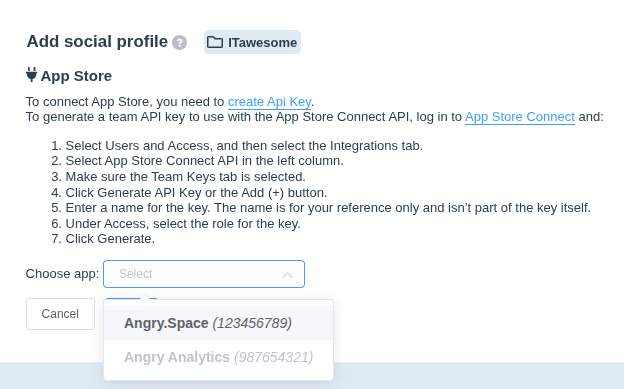
- In the window that opens, click the app selection field and choose the desired app from the dropdown list
The list will display all apps that the Customer support role in App Store Connect has access to, since the roles applied to the keys are the same roles applied to users on your team.
- After selecting the app, click the "Add" button.
From this point on, the app is connected to the service, and new reviews will be collected in the Comments section.