Request for the customer satisfaction index (CSI)
CSI is a direct survey that you send to the client after interacting with your company.
For the convenience of both operators and clients, sending such a survey can be configured directly in the service after closing a dialog using the "Reply and Close" or "Close without reply" buttons.
In this case, the client can rate the operator's performance in the current dialog without going to third-party sites, and the entire conversation is saved in the service for more detailed analysis.
It is also possible to configure additional questions for each rating in order to get feedback about necessary improvements.
Statistics on the ratings received will be available in the service in theStatistics — CSI section.
The rating request is currently available for the following accounts:
- Telegram
To enable the ability to send a survey request, go toSettings - CSIand move the toggles to the desired companies:
Once the feature is enabled, the settings for creating a survey will open.
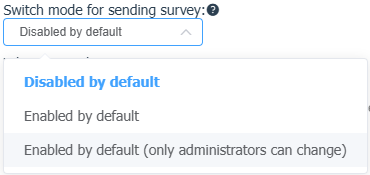
Switch mode for sending survey
The toggle that sends the rating request to the client is located below the text input field in the dialog window.
The following options are possible:
- Disabled by default — the operator activates the survey sending themselves if they want the client to rate the quality of service.
- Enabled by default — the survey will always be sent when the dialog is closed using the "Reply and Close" or "Close without reply" buttons; in cases where this is not required, the operator can turn off the survey sending themselves.
- Enabled by default (only administrators can change) — the survey will always be sent when the dialog is closed using the "Reply and Close" or "Close without reply" buttons; operators cannot change the toggle position.
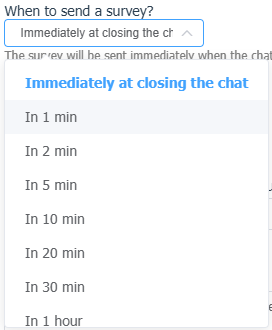
When to send a survey
This setting controls the time interval that will pass after the dialog is closed before the survey is sent to the client.
The survey can be sent immediately after closing, or you can choose the following intervals: 1, 2, 5, 10, 20, 30 minutes, 1, 2, or 3 hours.
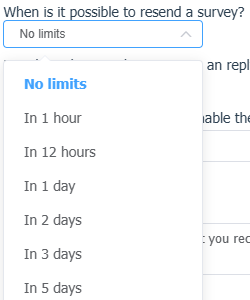
When resend a survey
This setting controls the time interval after which the survey can be sent to the same client again.
You can choose sending without time restrictions, or set an interval of 1 hour, 12 hours, 1, 2, 3, or 5 days.
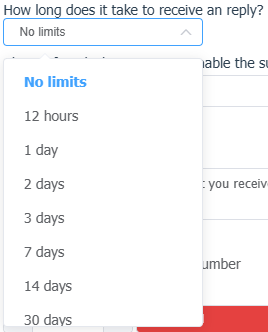
How long to wait for a response
his setting controls the period during which the client's response with a rating will be counted in the statistics.
By default there are no time restrictions, but you can set a period that suits you: 12 hours, 1, 2, 3, 7, 14, 30 days.
Selecting accounts and configuring multilingual sending
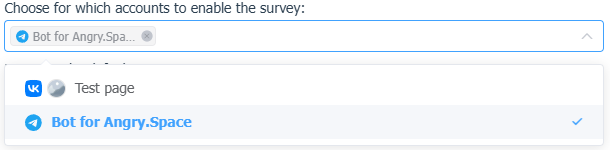
If a satisfaction rating is needed only for part of the company's accounts, here you can select only the necessary ones.
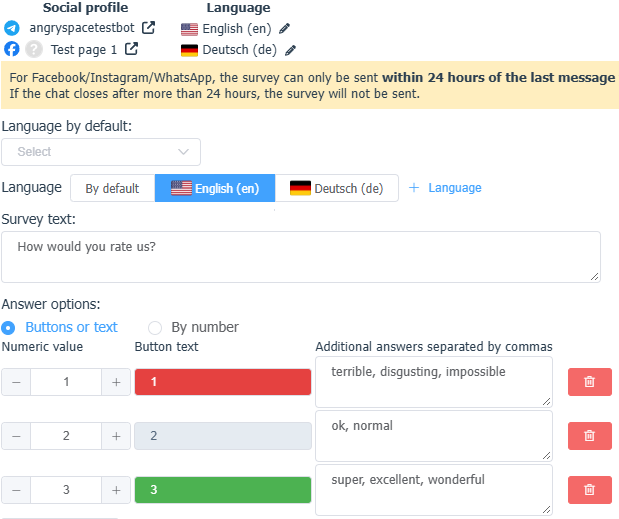
If you have a multilingual audience and need to communicate with clients in different languages on different accounts — for example, in English on Instagram and in German on Facebook — you can add the ability to select the survey language when sending.
Add a language in the survey settings by clicking the  button.
If required, set the default language for the selected company and/or for each selected account. For each selected language, translate the main question, the answer options (button names), and the automatic responses when a rating is received.
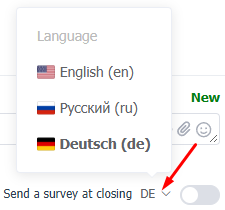
After saving the settings, the survey language selection will be available to the operator in the dialog window.
Configuring survey answer options
The service currently supports 2 types of survey:
1. Buttons or text
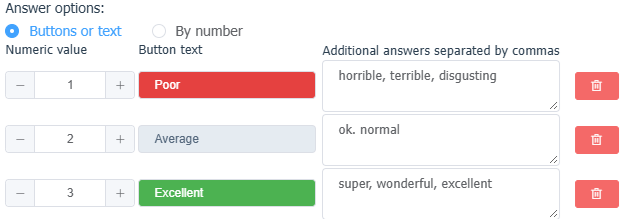
You can add as many buttons as you need by clicking "Add a Button", give them any name (including emoji).
2. In Instagram, buttons are displayed only in the mobile app; buttons are not supported in the web version (this is an Instagram limitation), so when configuring a survey we recommend duplicating the button names in the text in some way.
3.Also, for Instagram and Facebook, buttons are shown in a single row, and if they do not fit within the width (for example, in the mobile app), the user will need to scroll horizontally to see all answer options — this is not always obvious.
4. For personal Telegram account buttons are not available, so you need to set a separate survey text with an explicit list of possible answer options.

For this type of survey, you can configure additional answer options for cases where the user did not press a button but sent text. The rating will be matched by the button text and by the additional answer options, and will be counted where these parameters match.
2. By numbers
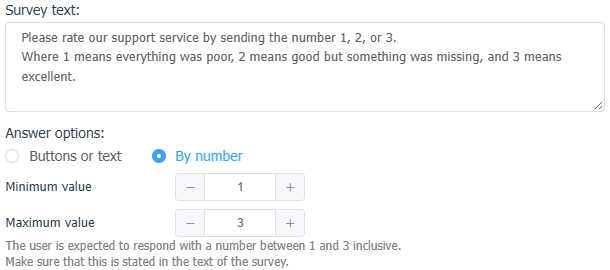
With a numeric rating, the client is not offered answer options; instead, they are expected to simply send you a number from the range you selected in response to the request.
If you choose this type of survey, make sure that you clearly inform the client about this in the request text.
Settings for closing the dialog after sending the survey
If just the rating you received is enough for you, check the "Automatically close the dialog on getting a score" checkbox.
If the checkbox is unchecked, dialogs with replies will remain open in the service until they are handled in manual mode.

If you want to receive a comment from the client about the score they gave, or thank them for taking the survey, check the "Automatically send a response on getting a score" checkbox and fill in the additional fields.
You can configure your own autoresponse for each possible rating.
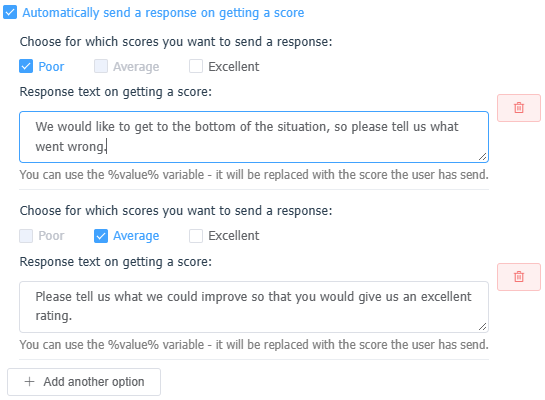
When an automatic reply is sent, the dialog in the service will be closed.
Important additional notes
The CSI rating is credited to the user who gave the last reply in Angry.Space.
For Facebook, Instagram, and WhatsApp, the survey can only be sent within 24 hours after the last message from the user. If the dialog is closed more than 24 hours later, the survey will not be sent.
If there is not a single reply from you in the dialog, the rating request will be unavailable.
If the dialog is closed without a reply, the rating request can only be sent if there has been at least some reply from you in the last 3 days.
If a rating is not recognized
In cases where a fairly large number of ratings fall into the "Not recognized" category — for example, if you use a numeric survey format and users often send text — the space Administrator can edit such ratings manually.
This option is available by default.
You can filter all unrecognized ratings via theStatistics — CSI sectionby clicking on their count in the table.
Then, in manual mode, replace them with the appropriate ones in the dialogs where necessary.
