VK Social profile connection
You can connect any VK page for social listening: a page, a group, an event. In the service, you can collect and process:
- direct messages of the community
- comments under posts
- comments under photos and videos
- comments under products
- comments in discussions
- @mentions in public posts
Please note that you can connect a page if you are an admin.
In order to connect a VK page
- Go toSettings - > Social profilesand click on the "Add Social profile" button with the requiredcompany
- Click the "Add" button next to VK Page
- Select the activities which the service will be listening

- Click the "Authorize" button and allow the application access to all requested permissions

- Select a VK page from the drop-down list.
If the desired page is not listed, check if you are its admin.
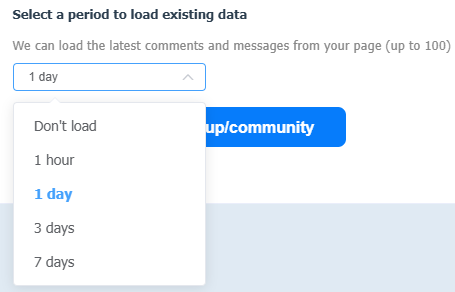
- If you need to load older requests, use the "Select a period to load existing data" block by selecting an option from the dropdown list
Please note that a full history of requests is not loaded. Technical limitations allow loading messages and comments no older than 7 days, and no more than 100 items in random order.
- Click "Authorize the Group/Community" and allow the app access to all requested permissions to manage your page.

After that, the configuration will be completed and all new comments, posts and discussions will go to Angry.Space.
After connecting, you can additionally configure:
- The ability to reply to comments on behalf of a personal page or another community that you manage.
You can connect an additional community for replying only if it hasmore than 50 subscribersand was createdat least 14 days ago.
To add personal pages or additional communities for replying:
- Go to the settings of the desired account in theSettings - > Social profilessection by clicking on the gear icon
- Expand the "Extended settings" block
- Click the "Add user account for replies" button if you want to add a personal page or click the "Add group/community for replies" button if you want to add an additional community
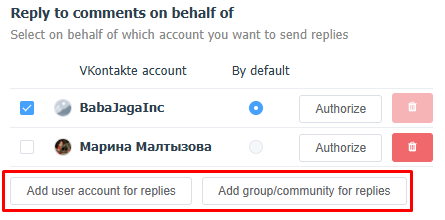
- Authorize in the pop-up window
- Check the boxes in the list for those users/communities you want to reply to comments with
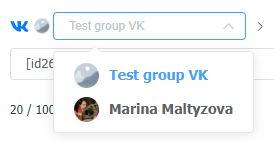
If multiple users or groups have been added, when replying to a comment, a menu will appear where you can select the desired user:
- The ability to add and use stickers in replies.
To add new sticker packs:
- Go to the settings of the desired account in theSettings - > Social profilessection by clicking on the gear icon
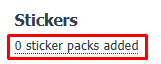
- Click on the text "0 sticker packs added"
- You will see a list of available sticker packs that can be added
The list shows those sticker packs that the user who connected the community to the service has in VKontakte itself.
- Click the "Add" button next to the desired stickers
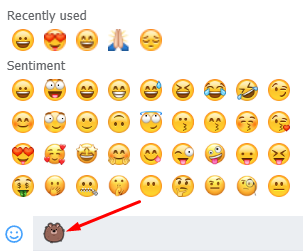
- After that, stickers from the selected pack will become available in the reply window
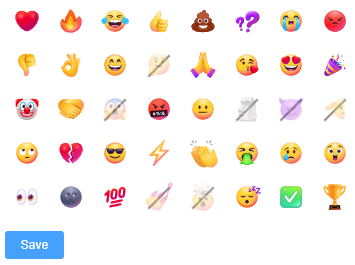
- The ability to configure reactions to direct messages.
Sending reactions in VK is only available for direct messages. For a reaction to be placed on a direct message, the message must be no older than three days.
To configure the displayed reactions
- Go to the settings of the desired account in theSettings - > Social profilessection by clicking on the gear icon
- Click on the text "All reactions enabled"
- Exclude the reactions you don't need by clicking on them
- Click the "Save" button